

Calls
Call View is a dedicated interface where you can manage voice communication activities - including live calls, call history, transcripts, summaries, and call related actions - all within the context of that space. This section provides a centralized space to initiate voice calls directly from within the space, view ongoing voice sessions, and manage call settings.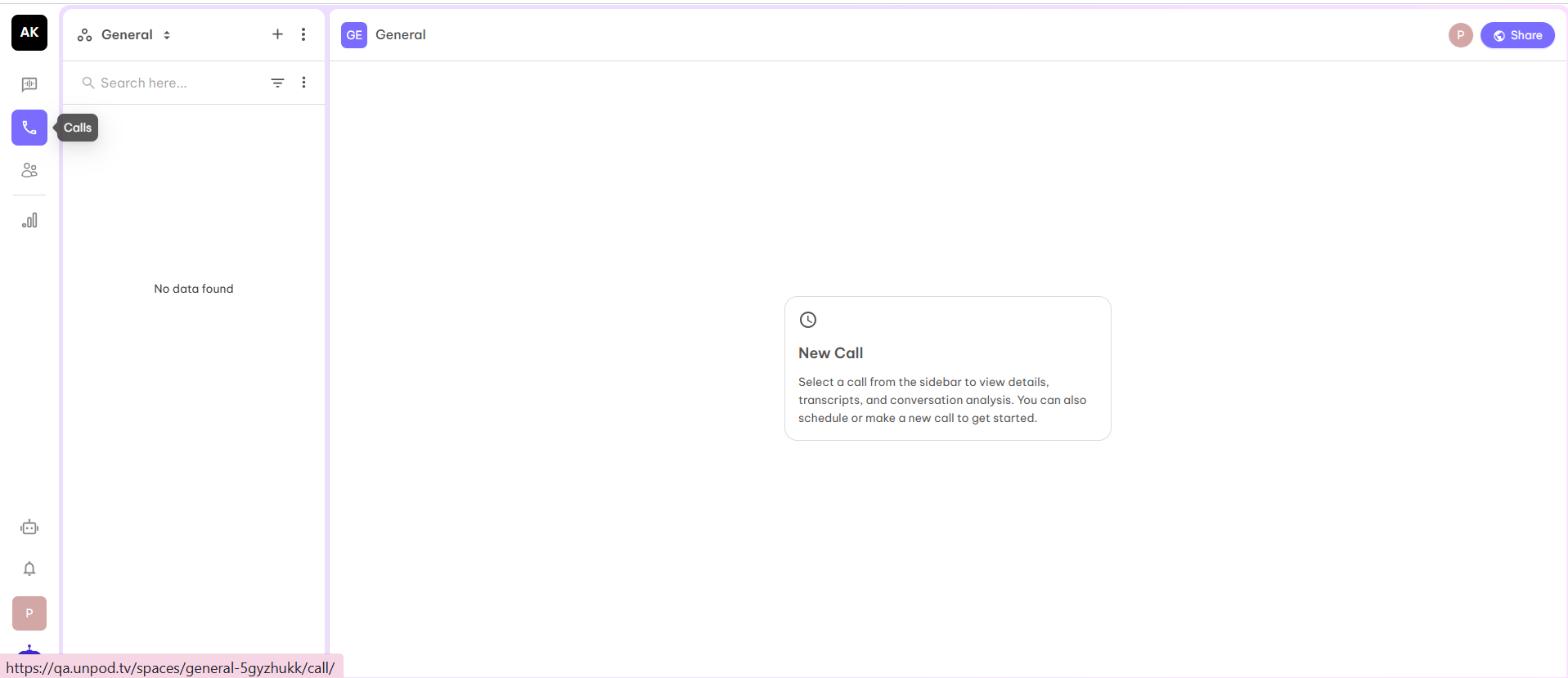
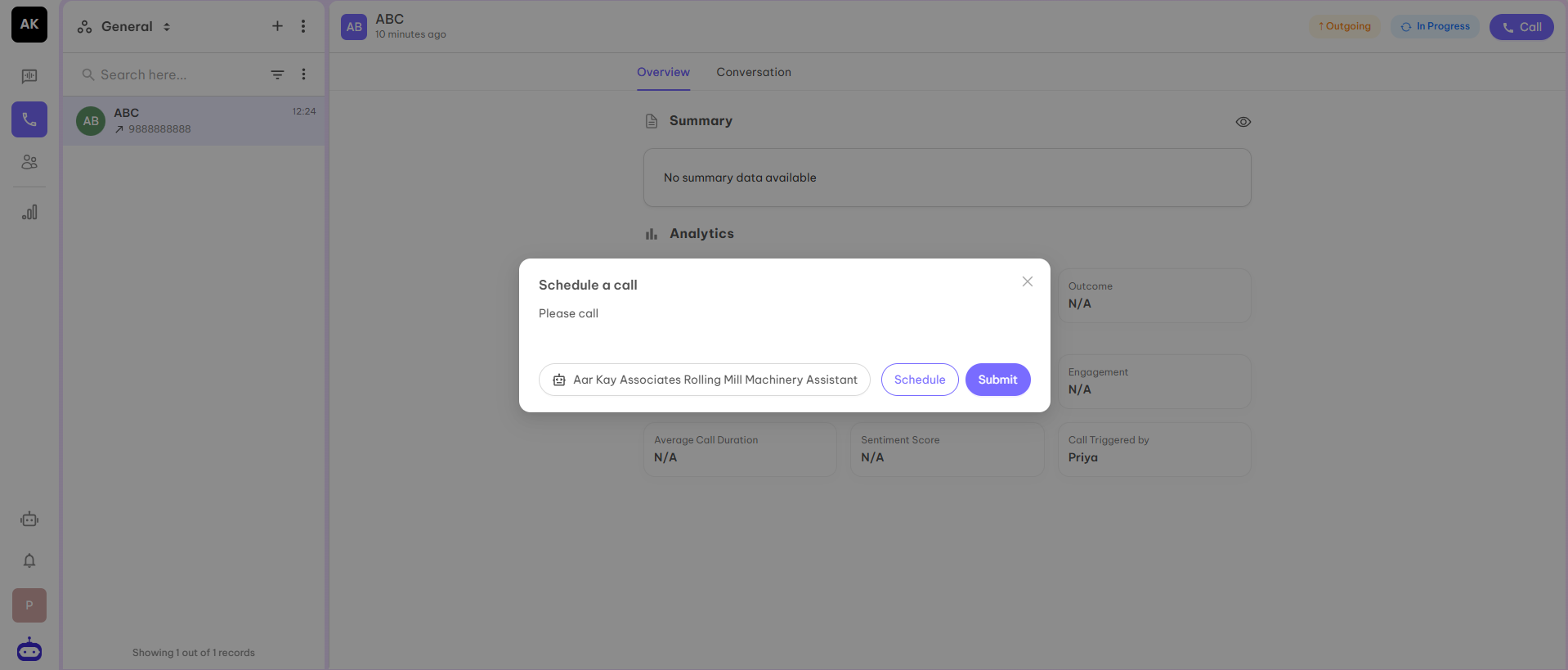
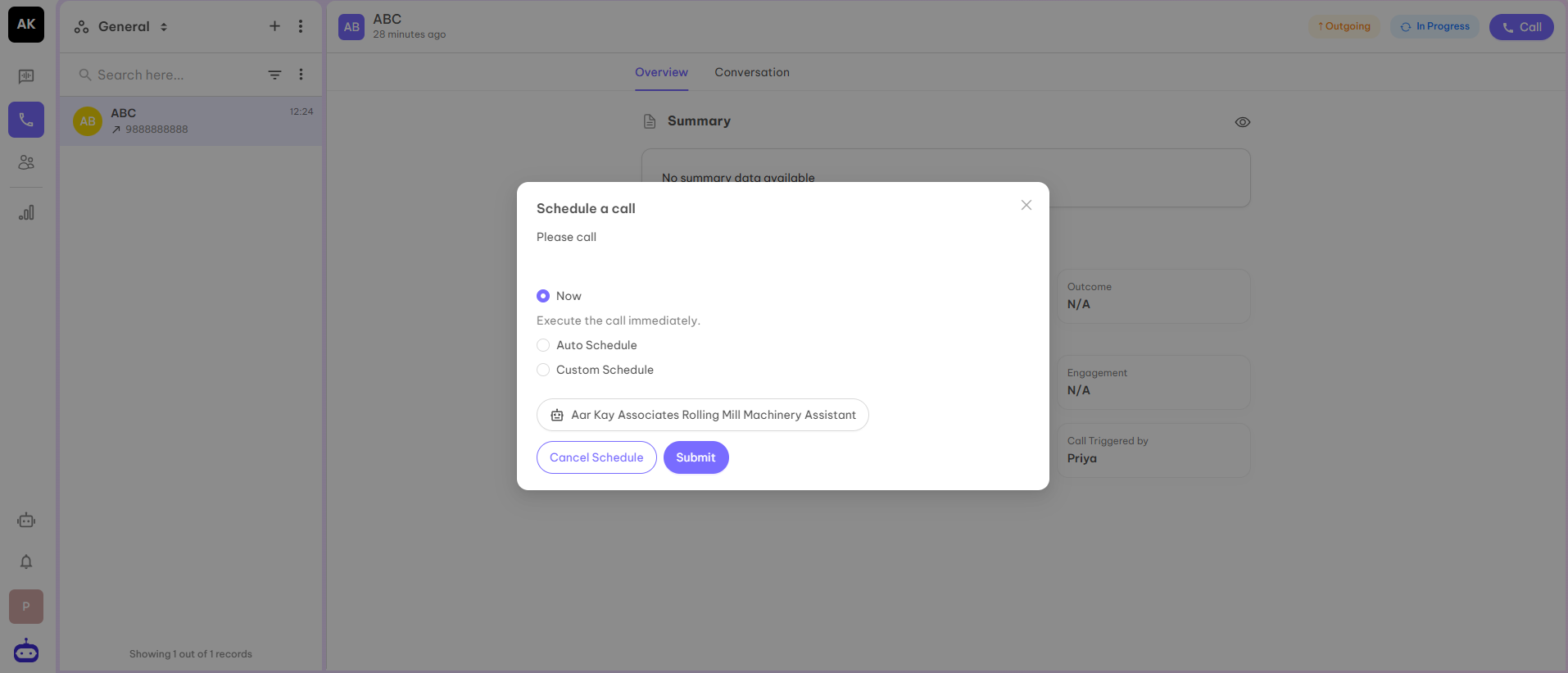
- Now - This is the default option
- Auto Schedule - This will take the pre-configured agent hours which we provide while creating the agent
- Custom Schedule - In this option, you can select the date and time manually
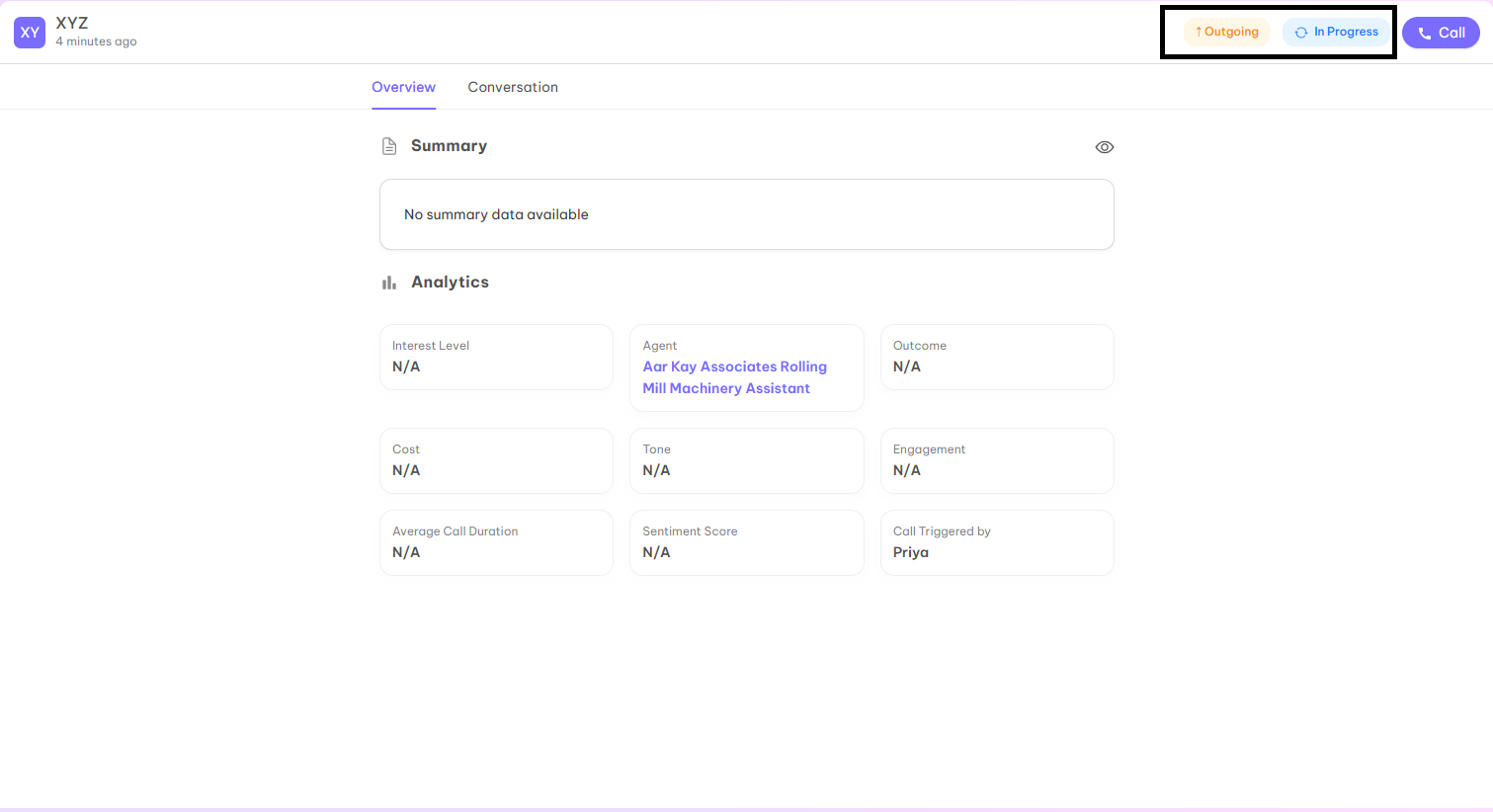
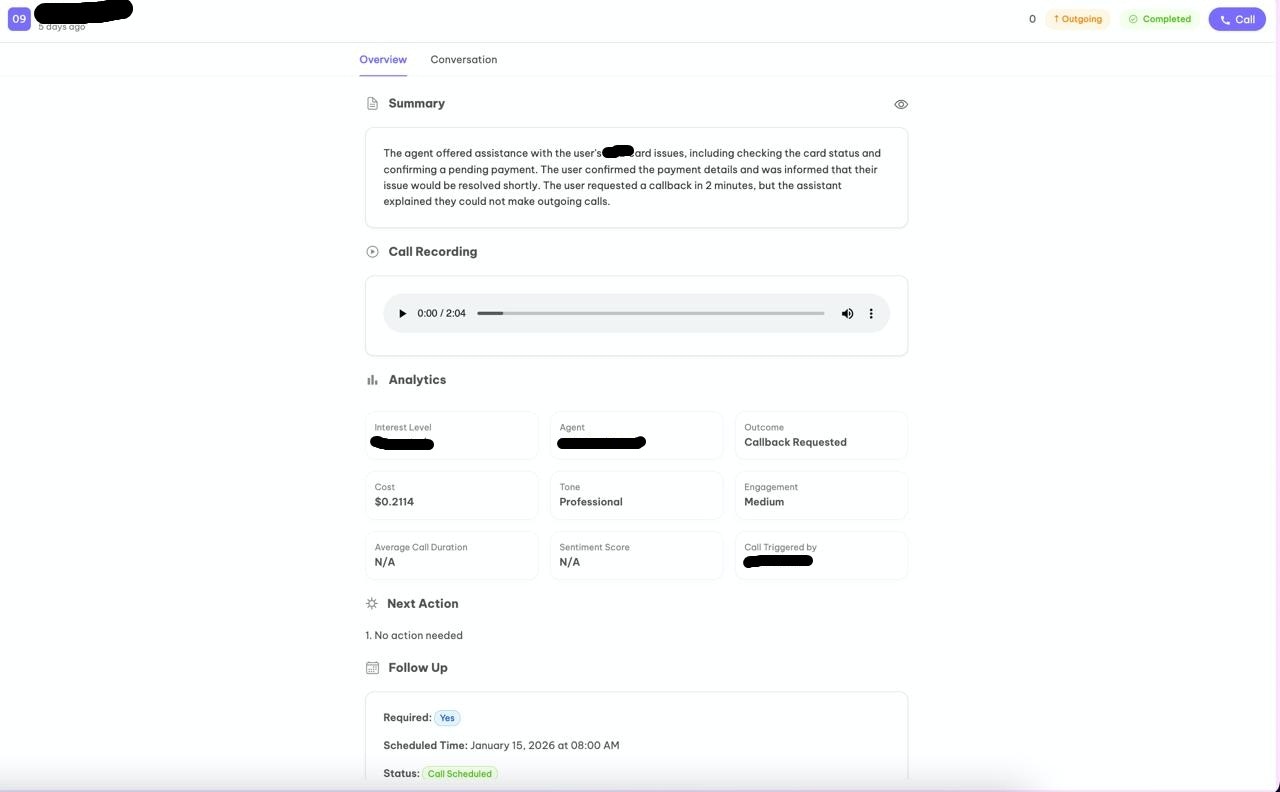
Overview
In the overview, you will be able to find the entire details:- Summary - Details about what the agent is offering
- Call recording - Call recording of the entire conversation
- Analytics - In this section, all parameters and outcomes of the call are shown like what is the interest level of the customer, which agent is used, outcome of the call, cost of the call, who triggered the call, etc
- Next Action - If any action is required by the client to fulfill the requirements of the customer
- Follow Up - This will show whether we have to take the follow up from the customer or not. This is the case when we see a customer is interested in a product or service
Conversation
In the conversation, chat between the customer and agent is visible. You may take the key points without listening to the whole recording.