Documentation Index
Fetch the complete documentation index at: https://docs.unpod.dev/llms.txt
Use this file to discover all available pages before exploring further.
Introduction to Space Mode
The interface below represents the Space View.
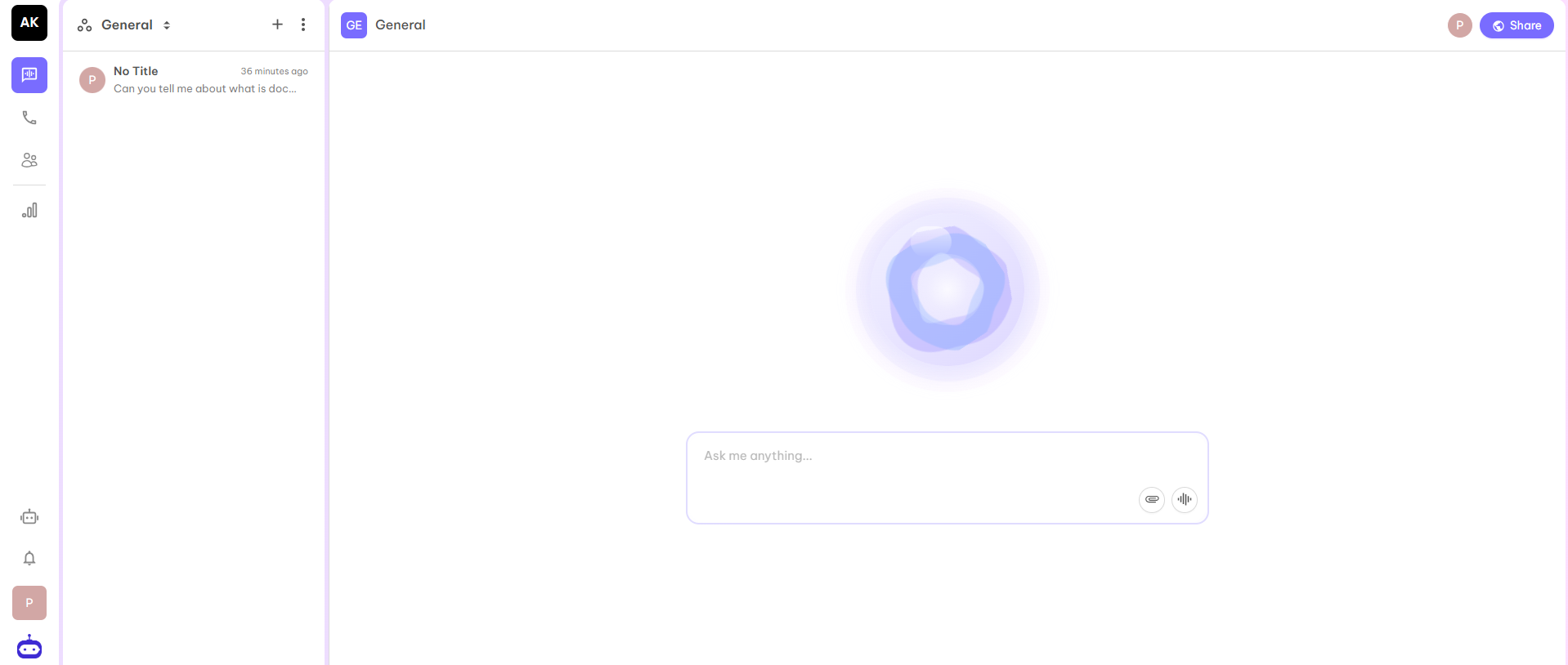 The left side bar of the Space View has four sections - Conversation, Calls, People, and Analytics.
At the left corner of the dashboard, you can see three dots from where you will be able to edit the space, copy the Space token, and download the Call Logs.
The left side bar of the Space View has four sections - Conversation, Calls, People, and Analytics.
At the left corner of the dashboard, you can see three dots from where you will be able to edit the space, copy the Space token, and download the Call Logs.
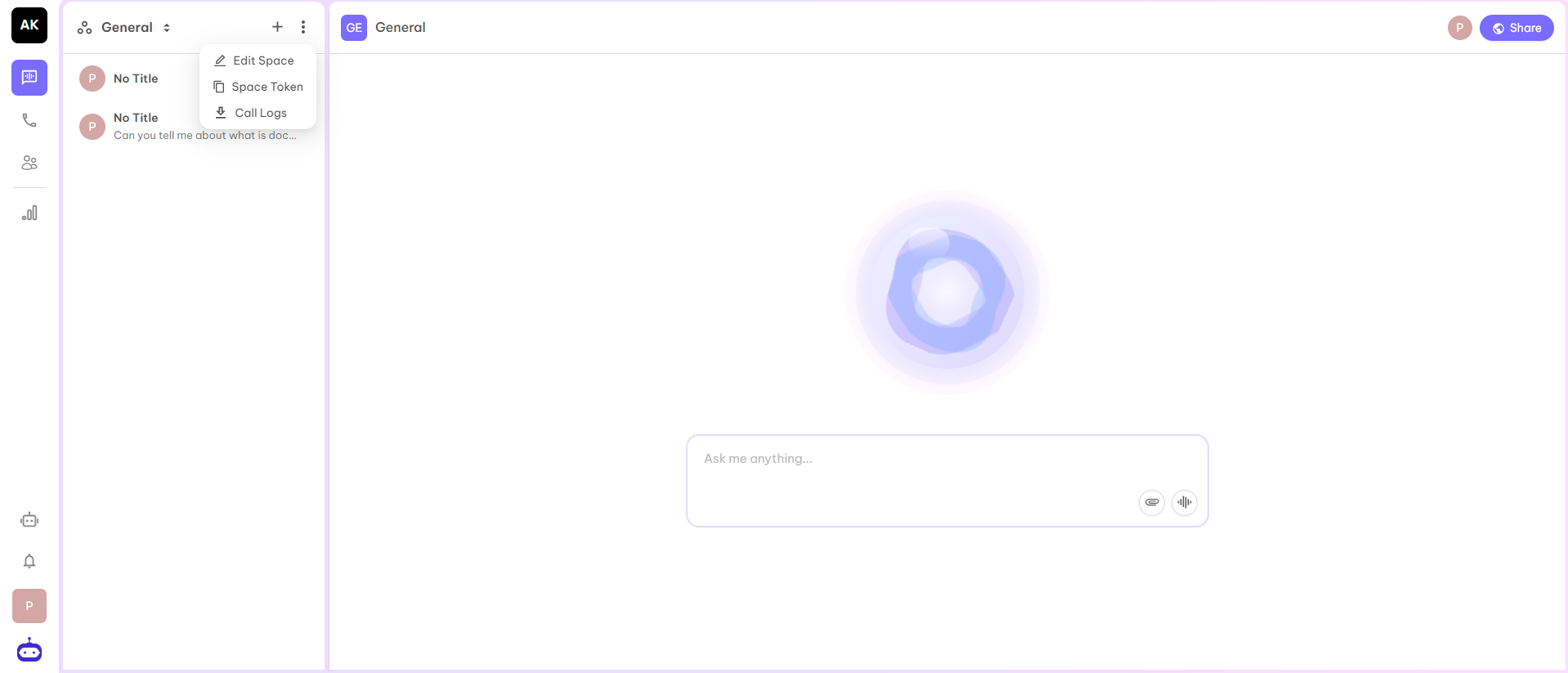
Edit Space
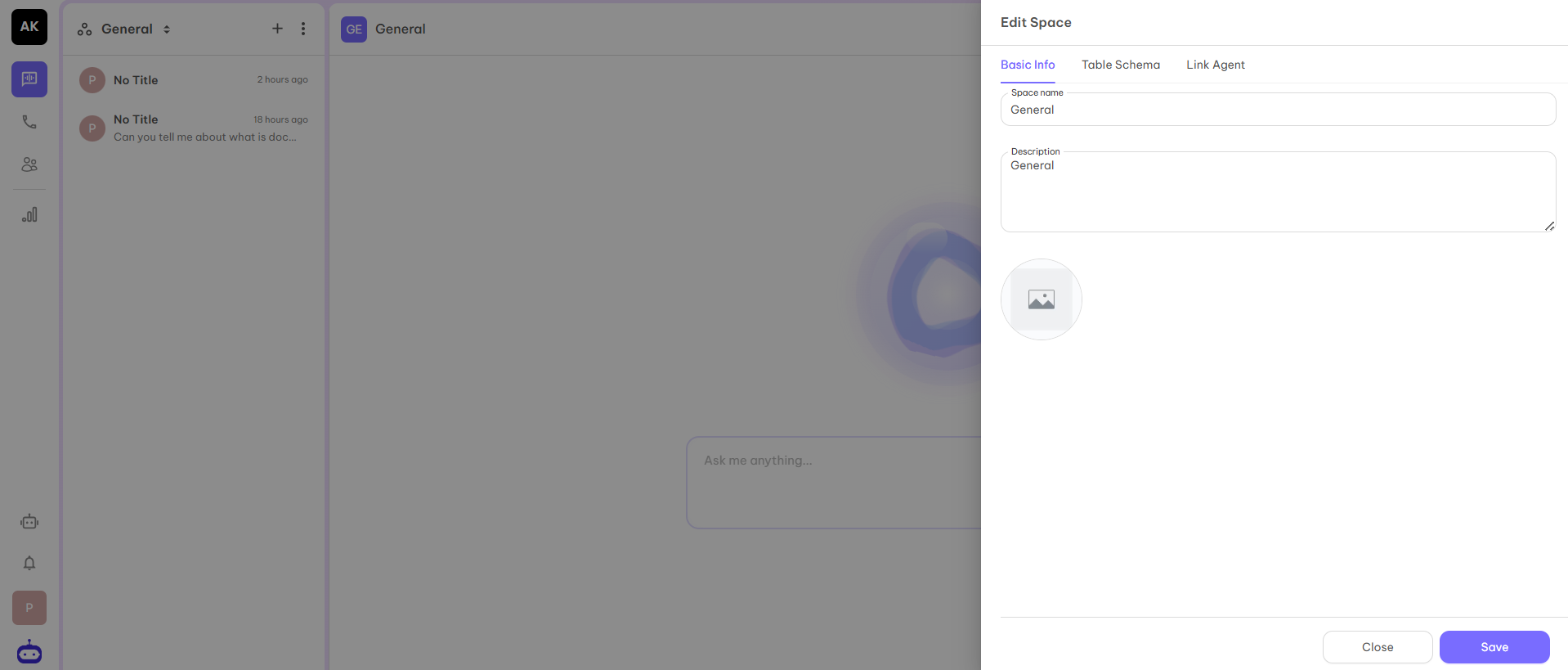
When you click on Edit space, you will be able to edit basic information of the space, Table schema which is the predefined fields required while adding the contact, and also able to link the agent.
 The main part to edit is Table Schema as the default schema has some fields which are not required or also we need some more fields according to the need of the business. When you click on Table Schema you will get the default fields.
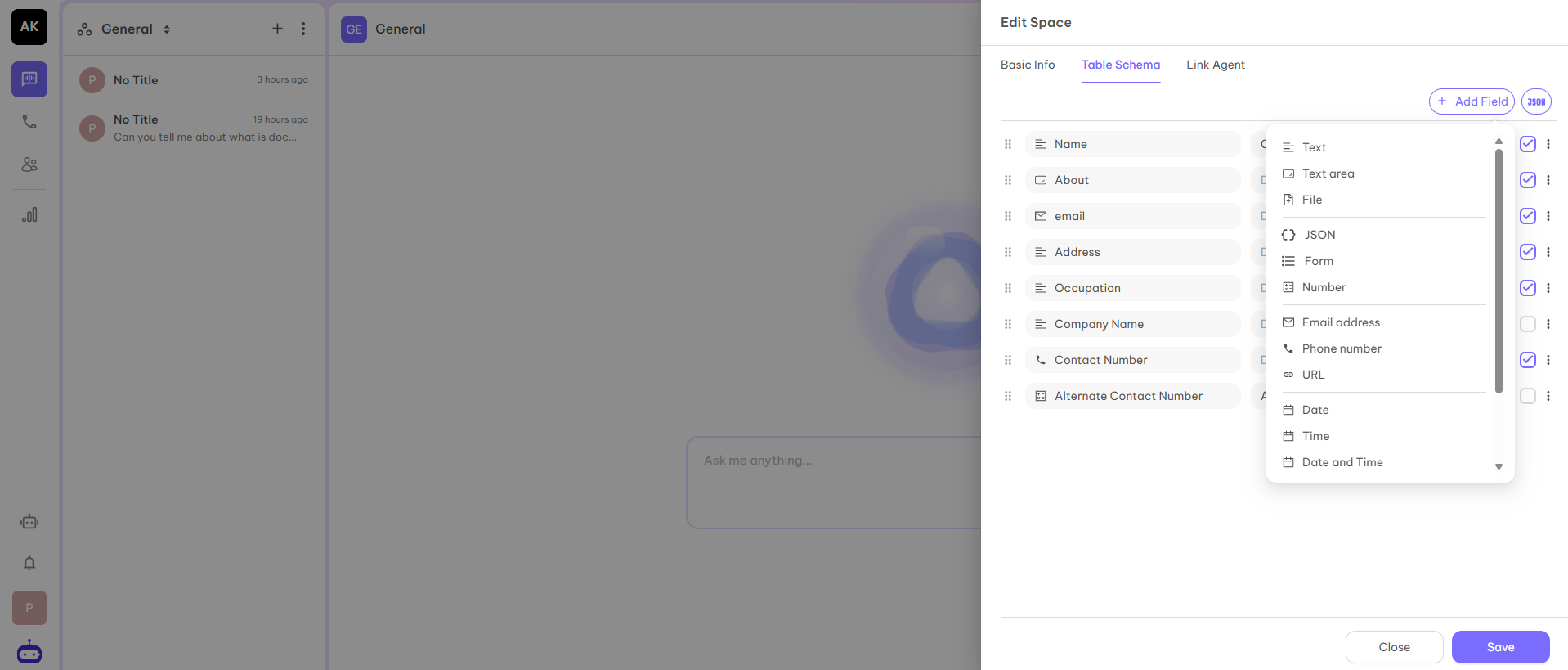
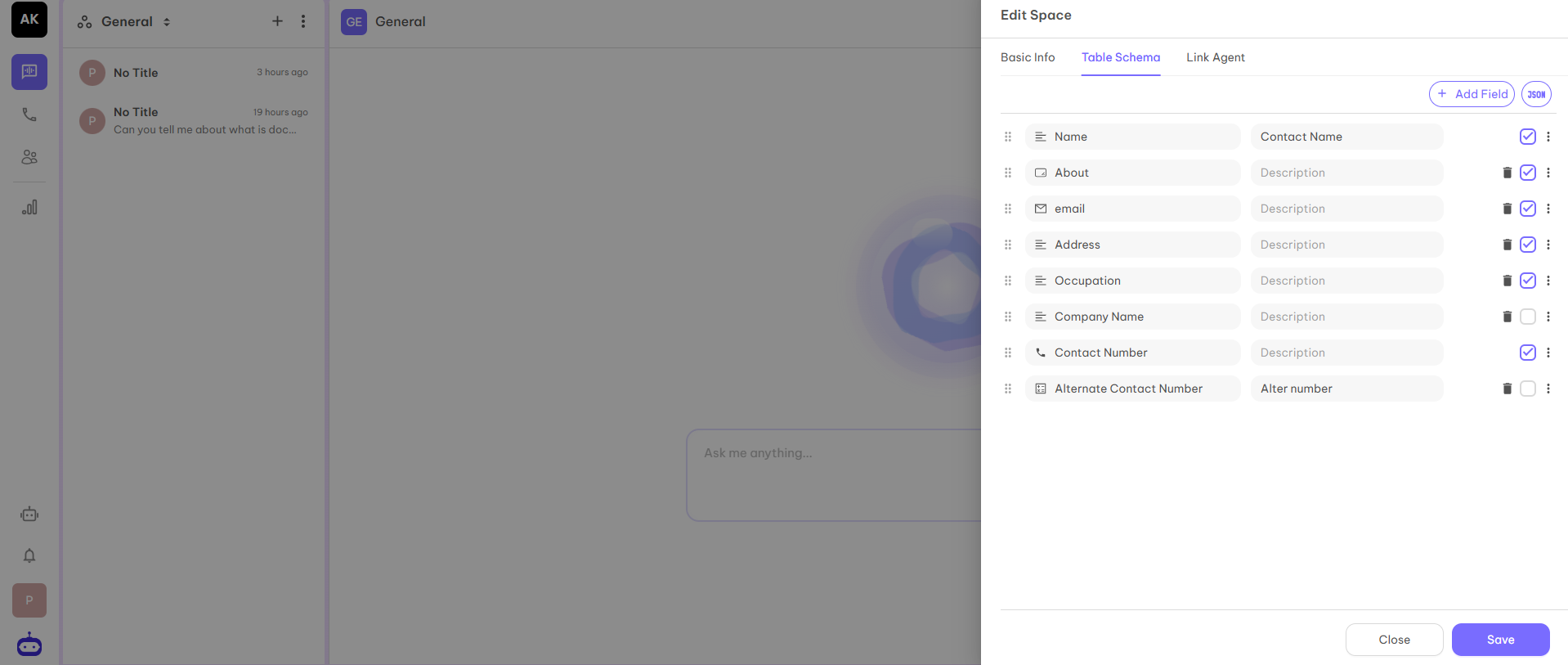 As you can see two fields are mandatory Name and Contact Number which you can not delete from the schema, rest of the fields can be deleted from the schema as per the requirement of the business. There is a check box in front of each field, if the check box is ticked that means the field is compulsory to fill but if there is no tick that means the field is not compulsory to fill. You can also add new fields according to the business requirement by clicking on Add Field at the top right corner.
When you click on Add Field, you will get the options of which type of field you want to add like Text, Text Area, File, Date, Time, Date and Time, etc.
As you can see two fields are mandatory Name and Contact Number which you can not delete from the schema, rest of the fields can be deleted from the schema as per the requirement of the business. There is a check box in front of each field, if the check box is ticked that means the field is compulsory to fill but if there is no tick that means the field is not compulsory to fill. You can also add new fields according to the business requirement by clicking on Add Field at the top right corner.
When you click on Add Field, you will get the options of which type of field you want to add like Text, Text Area, File, Date, Time, Date and Time, etc.
Space Token
Space Token is a unique access credential used to identify and authorize a user within a specific Space.
It is needed to secure access, control permissions, track activity, and ensure that actions (calls, docs, analytics) are correctly linked to the right Space and users.
