

Step 1
Enter OTP and click on “Verify”. You will be redirected to the page “Create your Voice Identity”.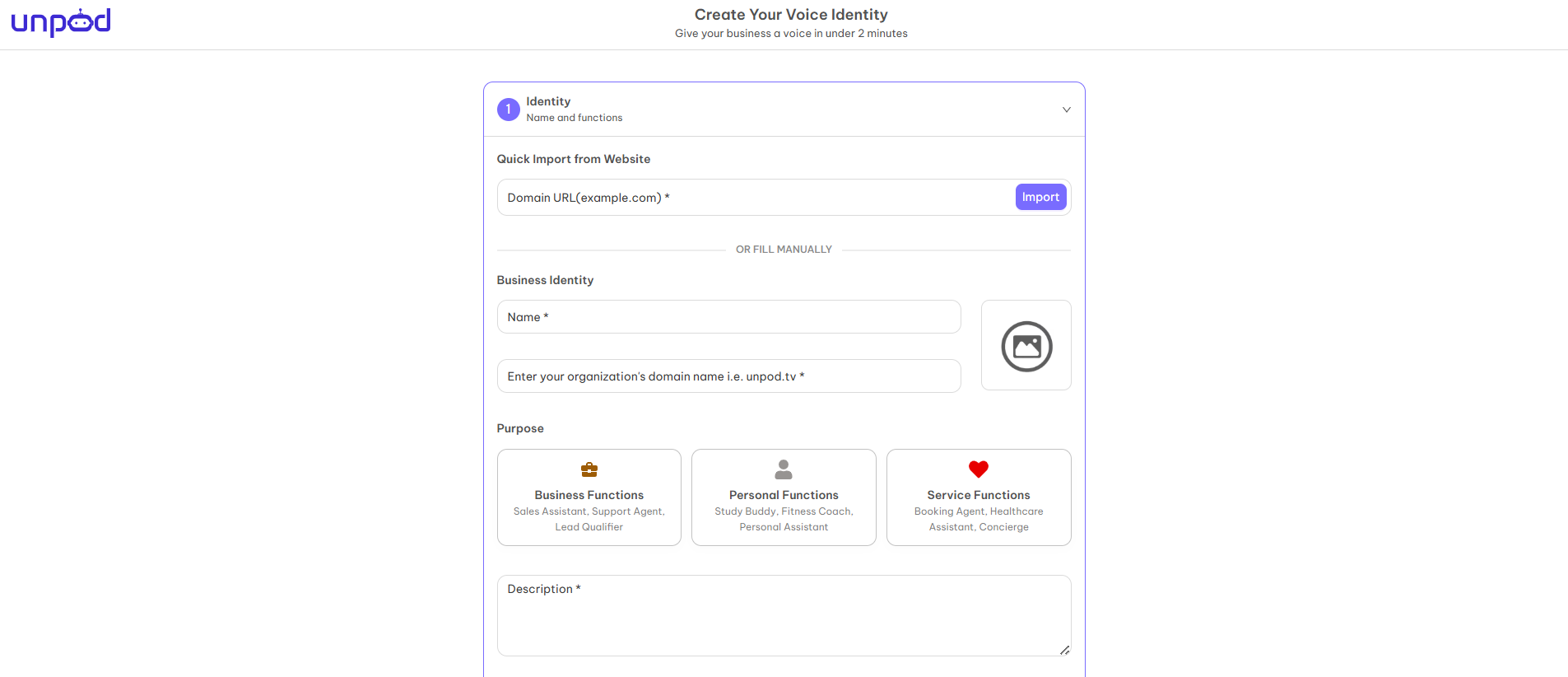
Step 2
First section is “Identity” which is the identity of your business. You can import the details from your business website by using “Quick Import from Website” or you can fill the details manually. When you import it from a website, all your details will be automatically taken by the CRM. The details required are:- Name - Your business name.
- Domain Name - Enter the domain name of your business, like gmail.com, yahoo.co, etc.
- Purpose - The purpose of your identity. You can choose from business, personal, or service according to the requirements of the business.
- Description - This sub-section will describe your business, what it does, what services or products it will provide to your business.
- Tags - Which type of identity you are creating for your business, for example, you want to create an identity who provides sales and leads to your business.
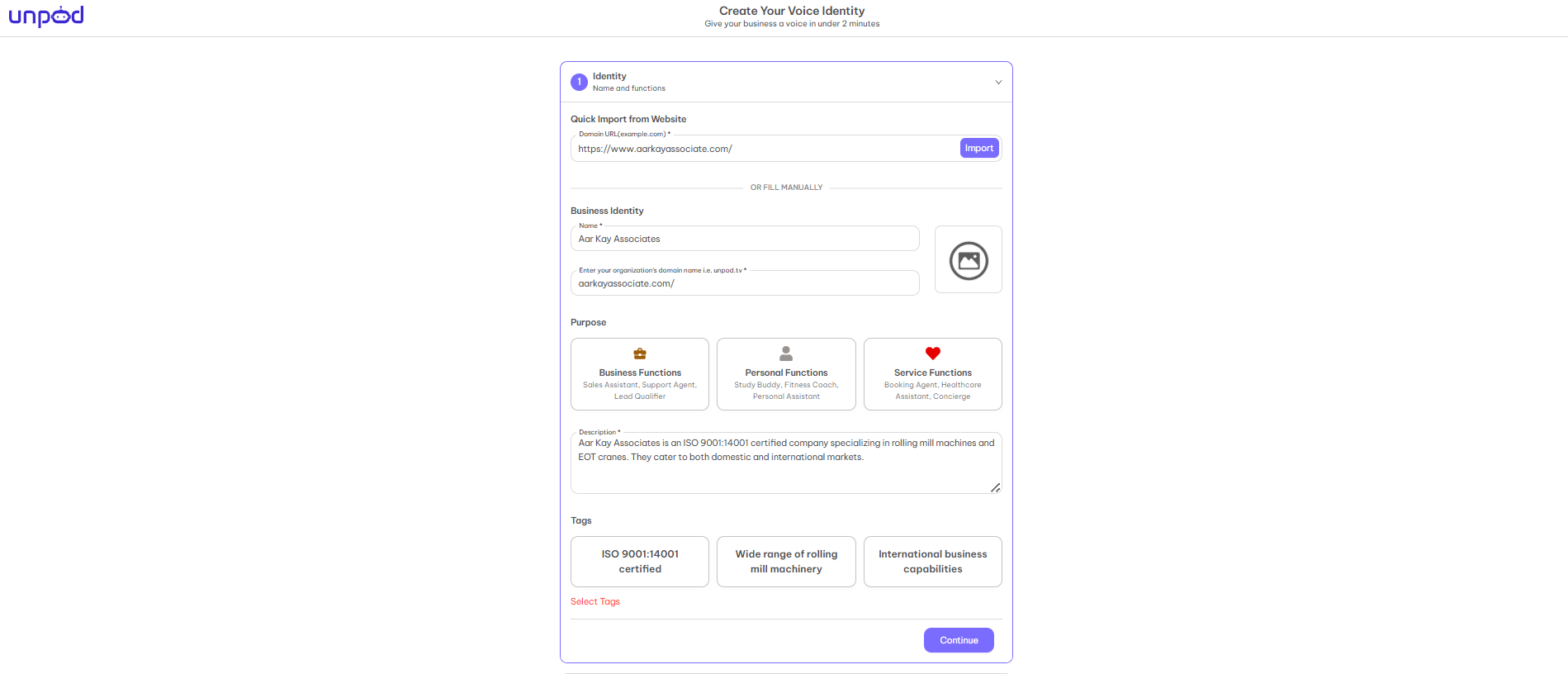 Here you have to select the tags which are more relevant to your business, and click on “Continue”.
Step 3
The second section is “Voice Profile”. With the help of this section, you can give voice to your business. You can listen to the available voices and choose the best that suits your business and click on “Continue”.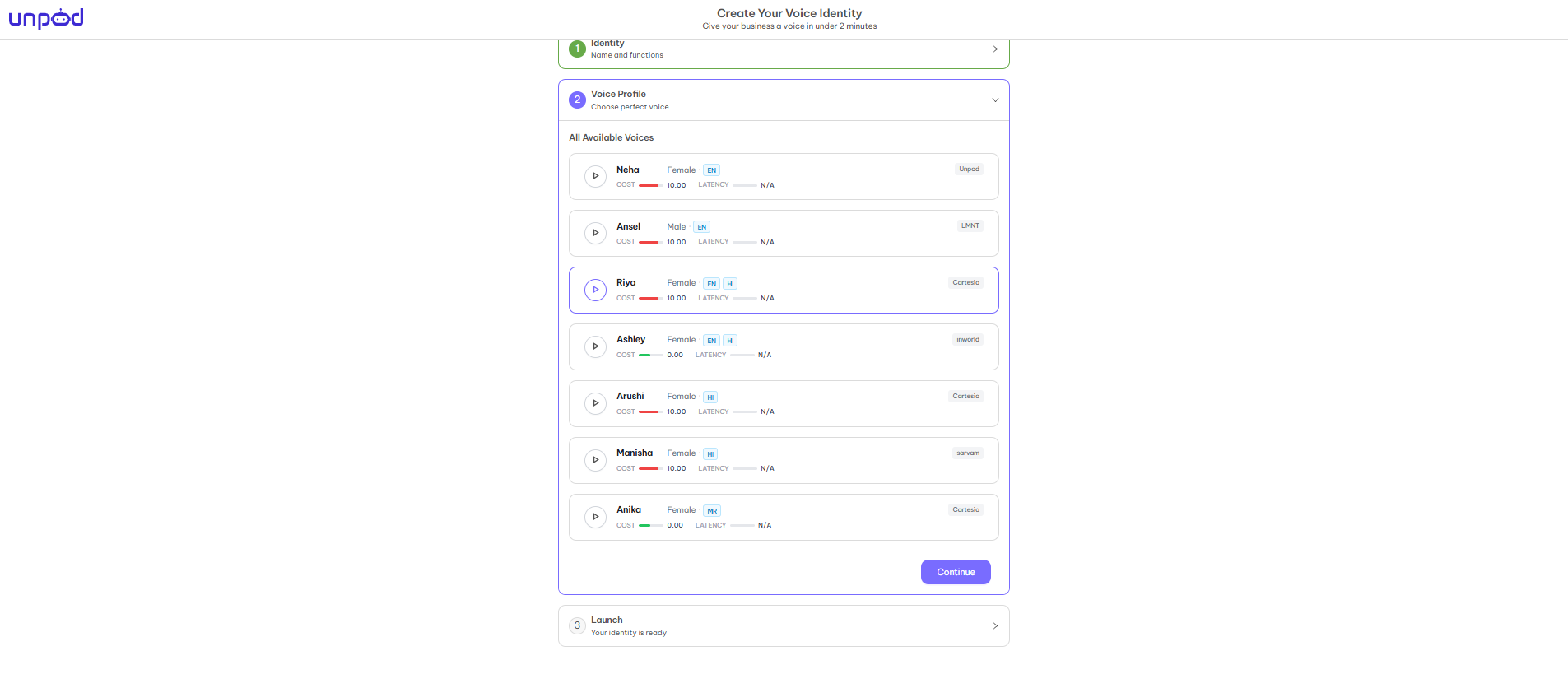
Step 4
The last section is “Launch”, it shows the summary of the identity of your business.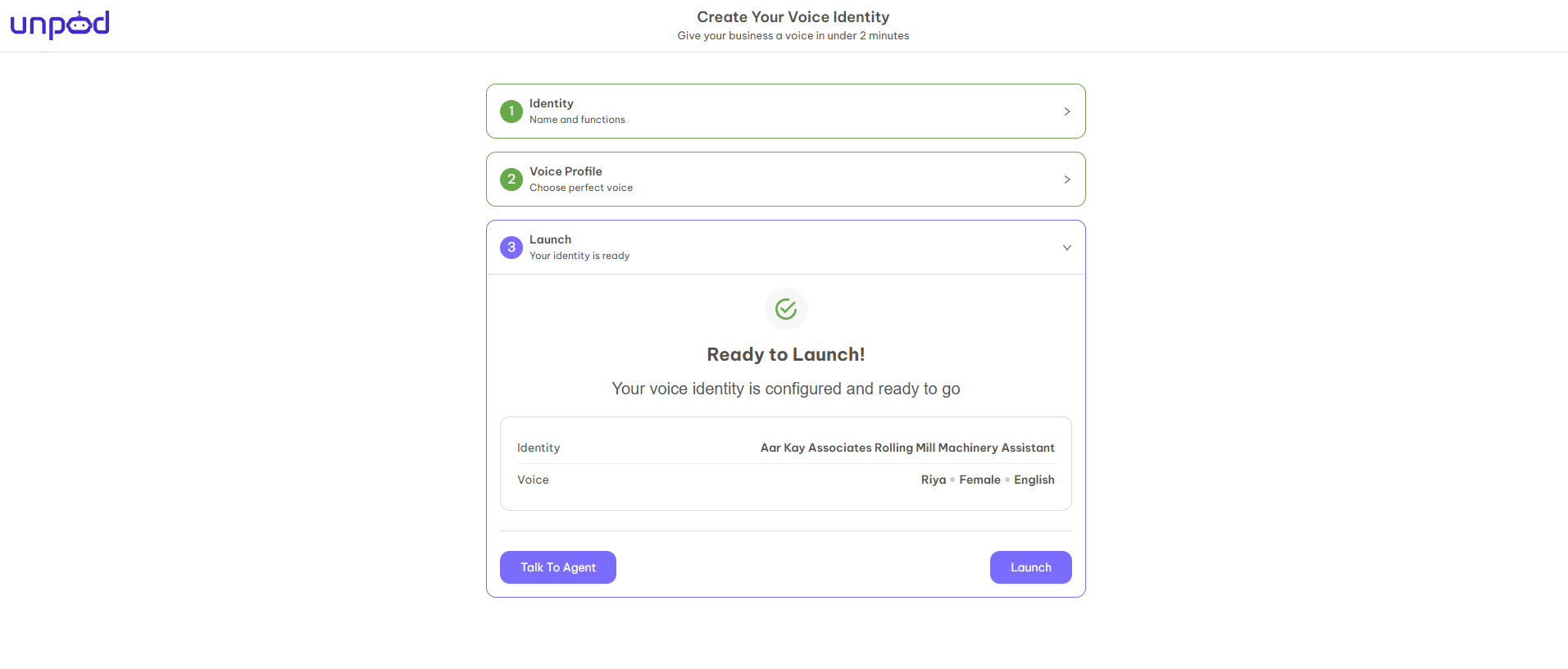
Step 5
Click on “Launch” and you will be redirected to the page of your organization which is the “Space View” of the organization.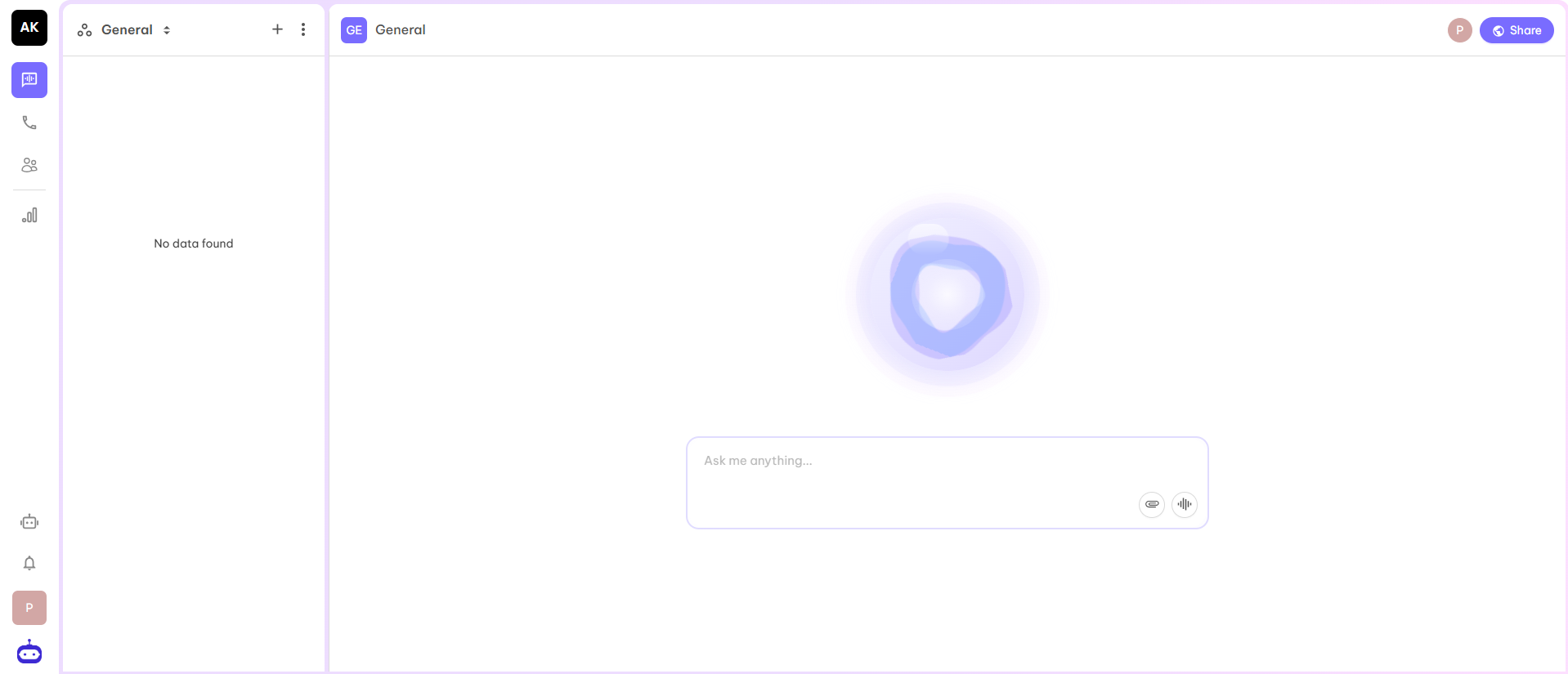 Now you have complete access to the dashboard.